Five reasons your small business website loads slowly
Most slow sites suffer from the same few problems: huge images, too many scripts, weak hosting, blocking code and unstable layouts. Learn to measure them and fix them in the right order.


Quick answer: the five usual suspects
When a small business website feels slow, the cause is almost never mysterious. After looking at many small sites, the same five problems account for the majority of the delay: oversized images, too many plugins and third-party scripts, slow or overloaded hosting, render-blocking code and fonts, and unstable layouts or heavy interactivity. Each can be diagnosed with free tools, and most can be improved without rebuilding the site.
This guide shows how to measure speed properly, how to recognize each of the five causes, how to fix them in a sensible order and how to keep the site fast afterward. It is written for business owners and for the people who maintain their sites, so the explanations are plain and the steps are concrete.
| Subject | Relationship | Value |
|---|---|---|
| Largest Contentful Paint (LCP) | measures | how quickly the main content of a page becomes visible |
| Interaction to Next Paint (INP) | measures | how quickly the page responds after a user interacts |
| Cumulative Layout Shift (CLS) | measures | how much the visible layout moves unexpectedly |
| Good LCP | is at most | 2.5 seconds at the 75th percentile of real visits |
| Good INP | is at most | 200 milliseconds at the 75th percentile |
| Good CLS | is at most | 0.1 at the 75th percentile |
| Images | are usually | the largest share of a page's weight |
| Third-party scripts | often add | network requests and main-thread work you do not control |
What "slow" actually means: the metrics that matter
People say "my site is slow" and mean different things. It might take a long time before anything appears, it might look ready but ignore taps, or it might jump around while loading. Modern speed measurement separates these experiences into specific metrics.
| Metric | What it captures | Good threshold | Typical cause of a bad score |
|---|---|---|---|
| Time to First Byte (TTFB) | How long the server takes to start responding | About 0.8 seconds or less | Slow hosting, no caching, heavy database queries |
| First Contentful Paint (FCP) | When anything first appears | About 1.8 seconds or less | Blocking CSS or fonts, slow server |
| Largest Contentful Paint (LCP) | When the main content is visible | 2.5 seconds or less | Large hero image, slow server, blocking resources |
| Interaction to Next Paint (INP) | Responsiveness to taps and clicks | 200 milliseconds or less | Heavy JavaScript, long tasks, third-party scripts |
| Cumulative Layout Shift (CLS) | Visual stability | 0.1 or less | Images without dimensions, late-loading banners, ads, fonts |
| Total Blocking Time (TBT) | Lab proxy for responsiveness | Lower is better | Large JavaScript bundles |
Three of these (LCP, INP and CLS) are the Core Web Vitals, the metrics Google reports on for real visitors. INP replaced an older metric called First Input Delay in 2024. The thresholds above are the commonly published "good" ranges, evaluated at the 75th percentile, which means that three out of four visits should meet them.
Lab data and field data
Lab data comes from a controlled test, such as Lighthouse running a simulated mid-range phone on a throttled connection. It is repeatable and good for finding problems. Field data comes from real visitors (for example Chrome user experience data shown in PageSpeed Insights and Search Console). It shows what people actually experience, including their devices and networks. Use lab data to debug and field data to judge.
Tools you can use for free
| Tool | Best for | Note |
|---|---|---|
| PageSpeed Insights | Quick lab and field results with suggestions | Run on mobile and desktop; repeat a few times |
| Search Console, Core Web Vitals report | Which groups of pages are good or poor in the field | Data lags by weeks; needs enough traffic |
| Lighthouse in Chrome DevTools | Detailed lab audit while you work | Use an incognito window without extensions |
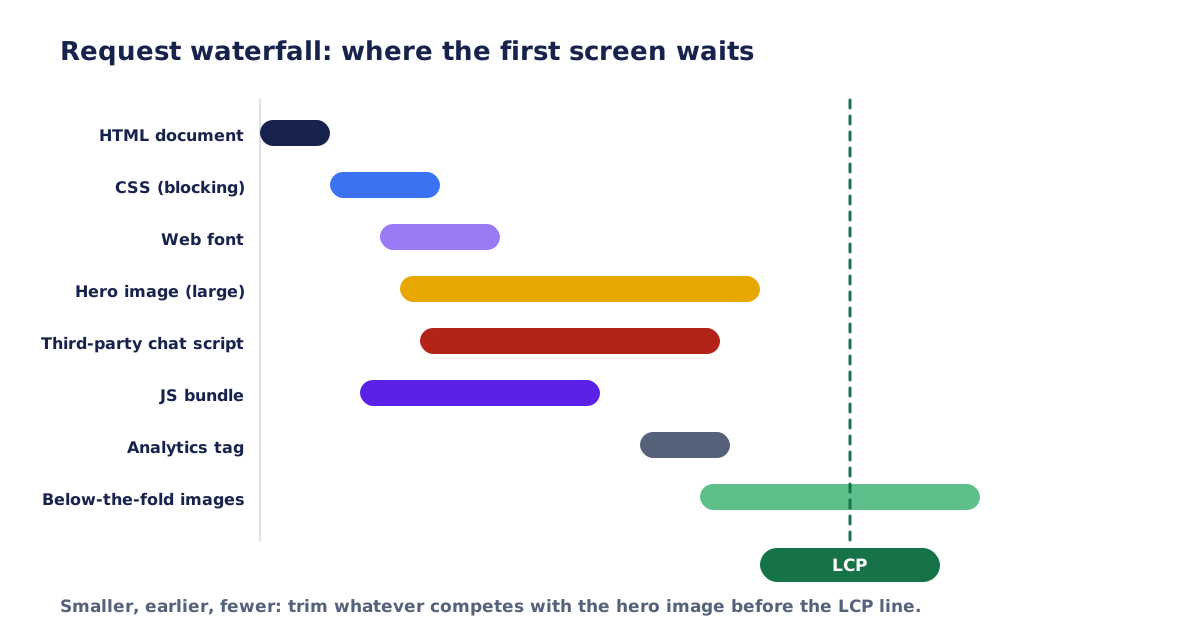
| WebPageTest | Waterfalls, filmstrips, testing from different locations | Choose a US location for a US audience |
| Chrome DevTools Network and Performance panels | Finding the exact slow request or script | Throttle to a mid-range mobile profile |
| Your hosting dashboard | Server response, resource limits and errors | Useful for diagnosing TTFB problems |
How to test properly
- Test the pages that matter: the home page, your main service or product page and the contact page
- Test on mobile first, because most visitors use phones
- Run each test three times and take the middle result; single runs fluctuate
- Test from a location near your customers, such as a US region for a US audience
- Record the result with the date so you can compare later
- Change one thing at a time when you can, so you know what helped
Why speed matters for a small business
Speed is not a vanity metric. It affects how many visitors stay, how many tap the phone number and how many complete a form. It also interacts with search visibility, although in a limited and often overstated way.
Visitors and conversions
A slow page costs attention. People on phones, often on mobile networks, will abandon a page that does not show something useful quickly. For a local service business, that can be a lost call. For a store, it is an abandoned cart. The exact effect varies by audience and page, so measure your own conversions before and after changes rather than trusting generic percentages.
Search engines
Google has stated that page experience, including Core Web Vitals, is one of many signals used in ranking, and that relevance of content remains more important. In practice, speed rarely lifts a weak page above a strong, relevant one, but a very slow or unstable page can hold back a page that would otherwise perform well, and slow pages are crawled less efficiently. Think of speed as removing a handicap rather than as a shortcut to the top.
Accessibility and reach
Fast, lightweight pages work better for people on older phones, limited data plans and weaker connections. That is part of serving customers well, and it overlaps with accessibility: fewer moving parts means fewer things that can break for assistive technology.
Reason 1: oversized and unoptimized images
Photos taken with a phone or camera are often 3 to 12 megapixels and several megabytes in size. Uploaded straight to a page that displays them at 600 pixels wide, they force every visitor to download far more data than they can see. Images are usually the largest part of a page's total weight, so this is often the biggest single win.
How to recognize it
- PageSpeed Insights lists "Properly size images", "Serve images in next-gen formats" or "Efficiently encode images"
- The Network panel shows image files of hundreds of kilobytes to several megabytes
- The largest element in the LCP report is a big hero photo
- The page weight in a waterfall is dominated by .jpg or .png files
How to fix it
- Resize to the displayed size. If an image appears at 800 pixels wide on desktop, a 1600-pixel version (for high-density screens) is enough. A 5000-pixel original is not.
- Compress. Use a quality setting that keeps the image visually clean. Photos usually compress well with little visible loss.
- Use modern formats. WebP and AVIF are typically much smaller than JPEG or PNG at similar quality. Provide a fallback where required, or rely on the platform to serve the right format.
- Serve responsive images. Use srcset and sizes so phones download smaller versions than desktops.
- Lazy-load images below the first screen. Add loading="lazy" to images that are not visible immediately.
- Do not lazy-load the main image. The hero or LCP image should load early, and can be given high priority.
- Set width and height. This reserves space and prevents layout shifts.
- Use SVG for logos and simple graphics. They are tiny and sharp at any size.
| Image role | Typical displayed width | Suggested source width | Format | Weight target |
|---|---|---|---|---|
| Full-width hero | 1200 to 1440 px | 1600 to 2000 px with responsive versions | AVIF or WebP | Aim for roughly 150 to 300 KB |
| Content image | 600 to 900 px | Up to 1400 px with responsive versions | WebP or JPEG | Under about 150 KB |
| Thumbnail or card | 300 to 400 px | Up to 800 px | WebP or JPEG | Under about 60 KB |
| Logo | 100 to 250 px | Vector | SVG | A few KB |
| Background pattern | Varies | Use CSS or SVG instead | CSS or SVG | Minimal |
These numbers are rules of thumb, not requirements. A photography portfolio will justify larger files than a plumbing company. The principle is the same: deliver the smallest file that still looks good at the size shown.
Images and your CMS
Many content management systems create resized copies automatically, but the theme must request the right size. Check that your theme uses the generated sizes. If editors upload huge originals, set a maximum upload size or an automatic optimization step so the problem does not return.
Reason 2: too many plugins, scripts and third-party tools
Every plugin, widget and tracking tag adds code that the browser must download, parse and run. Individually each seems small. Together they can double the load time and make the page sluggish to use.
Common offenders
| Addition | Why people add it | Typical cost | Better approach |
|---|---|---|---|
| Live chat widget | Convert visitors | Several scripts and network calls on every page | Load on interaction or only on key pages |
| Sliders and carousels | Show several messages | Heavy images and JavaScript | One clear hero message |
| Pop-ups and overlays | Capture emails | Script weight, layout shifts, annoyance | Use sparingly, delay, make accessible |
| Multiple analytics and pixels | Measure everything | Many scripts, privacy considerations | Keep what you use and remove the rest |
| Embedded videos and maps | Show content in place | Large iframes loaded on every view | Use a click-to-load preview image |
| Social feeds | Show activity | External requests, unpredictable size | Link to profiles instead |
| Page builder add-ons | Extra design blocks | Unused CSS and JavaScript on every page | Choose a lean theme, load assets per page |
| Font and icon libraries | Typography and icons | Several font files and stylesheets | Subset, limit weights, use SVG icons |
How to audit what is running
- Open the Network panel in your browser, reload the page and sort by size and by domain
- List every third-party domain and the purpose of each
- Ask for each: who uses this, how often, and what happens if we remove it
- Check your tag manager container for old tags that nobody remembers
- Review the plugin list in your CMS: disable and delete anything unused
- Test again after each removal to measure the effect
How to keep the useful ones lighter
- Load scripts with async or defer so they do not block rendering
- Delay non-essential scripts until after the page is interactive or the user scrolls
- Use a click-to-load "facade" for video and map embeds
- Host critical resources, such as fonts, yourself where the license allows it
- Limit tracking to what you actually use for decisions
- Review consent and cookie tools: some load heavy scripts before any content
A good rule is that every script must justify its cost. If nobody can say what decision it supports, it should go.
Reason 3: slow hosting and weak server response
Before the browser can show anything, it needs the HTML from your server. If that takes more than a second, everything else starts late. Time to First Byte (TTFB) reflects server speed, caching and the distance between the server and the visitor.
Signs of a hosting problem
- TTFB in PageSpeed Insights or WebPageTest is consistently above about 0.8 seconds
- The site is fast at night and slow during the day
- The admin area is much slower than it used to be
- Frequent timeouts or 5xx errors
- Your host limits CPU or memory and the site regularly hits the limit
| Type | Typical strength | Typical risk for small sites | When it fits |
|---|---|---|---|
| Shared hosting | Low price | Resource contention with other sites, limited control | Very simple, low-traffic sites with caching |
| Managed platform hosting | Optimized stack and caching, support | Higher monthly cost | Business sites that rely on one platform such as WordPress |
| Virtual private server | Control and predictable resources | You maintain the server | Custom applications and technical teams |
| Static hosting with a CDN | Very fast and secure for static sites | Needs a build process | Sites with infrequent content changes |
| Hosted site builders | Convenience, no server work | Less control over code and performance | Simple sites that fit the template |
What usually helps
- Page caching. Serve ready-made HTML instead of generating each page from the database for every visit.
- A current PHP version if you use PHP, with an opcode cache enabled.
- Object caching for dynamic sites, where the host supports it.
- A content delivery network (CDN). It serves static files from locations near visitors, which matters for a US audience if your server is elsewhere.
- Compression. Enable Brotli or gzip for text files.
- HTTP/2 or HTTP/3. Most modern hosts offer them; confirm they are on.
- Database cleanup. Remove old revisions, spam and transient data on content-managed sites.
- A closer server region. Choose a data center in or near the United States if that is where your customers are.
If tuning does not bring TTFB into a healthy range, it may be time to change hosting. Plan the move carefully: copy the site, test it through a temporary address, lower DNS time-to-live values in advance and keep the old host for a few days after switching.
DNS and certificates
Slow DNS lookups and a misconfigured TLS setup add small but measurable delays. Use a reliable DNS provider, and confirm that your certificate chain is complete and that the site does not redirect through several hosts before reaching the final page.
Reason 4: render-blocking code, heavy CSS and slow fonts
Browsers cannot paint a page until they have the styles that describe it. Large stylesheets and synchronous scripts in the head block that process. Fonts add another wait if they are loaded carelessly.
CSS
- Remove unused CSS: page builders and frameworks often ship thousands of rules a page never uses
- Minify stylesheets and combine them where it reduces requests without creating one huge file
- Inline the small amount of critical CSS needed for the first screen and load the rest without blocking, where your platform supports it
- Avoid importing CSS through @import chains
JavaScript
- Load non-critical scripts with defer
- Do not put large scripts in the head without async or defer
- Split or remove code that is only needed on specific pages
- Prefer small, purpose-built scripts over large libraries for simple tasks
Web fonts
Custom fonts are a design asset and a performance cost. Each weight and style is a separate file. Self-host fonts when the license allows, subset them to the languages you use, prefer variable fonts or limit weights to the few you need, and use font-display: swap so text appears immediately in a fallback font. Preloading the main font file can reduce the delay.
| Choice | Effect | Recommendation |
|---|---|---|
| Many weights and italics | Several large downloads | Limit to the weights you use |
| Full character set | Larger files | Subset to the languages needed |
| font-display: swap | Text visible immediately | Use it, and choose a close fallback font |
| Preload main font | Earlier availability | Preload only the one or two critical files |
| Third-party font host | Extra connection and potential privacy considerations | Self-host where the license permits |
| Icon font for a handful of icons | Whole font loaded | Replace with inline SVG |
Reason 5: layout shifts and slow interactions
A page can load quickly and still feel bad if content jumps as it loads or if taps respond late. These two problems are measured by CLS and INP.
Layout shifts (CLS)
Layout shifts occur when elements change size or position after the visitor has started reading. The usual causes are images and embeds without reserved space, banners or cookie notices inserted above content, late-loading ads and fonts that change text size when they arrive.
- Always set width and height (or an aspect ratio) on images, videos and iframes
- Reserve space for banners, ads and embedded widgets
- Insert dynamic content below existing content, or in reserved containers
- Use font-display with a well-matched fallback to reduce text reflow
- Avoid animations that change layout properties; animate transforms and opacity instead
Slow interactions (INP)
INP reflects how long the page takes to respond after taps, clicks and key presses. Delays come from the main thread being busy with JavaScript. Heavy menus, sliders, form scripts and third-party tags are the usual culprits.
- Remove or replace heavy scripts and plugins
- Break up long tasks so the browser can respond between them
- Avoid doing expensive work in click handlers; show feedback first
- Limit the number of third-party scripts that run on interaction
- Test on a mid-range phone, not only a fast laptop
| Symptom you notice | Likely cause | First fix |
|---|---|---|
| Blank screen for a long time | Slow server or blocking resources | Check TTFB, enable caching, defer scripts |
| Hero image appears late | Oversized image, lazy-loaded hero | Resize, compress, prioritize it |
| Page looks ready but taps do nothing | Heavy JavaScript | Remove scripts, defer, split bundles |
| Text or buttons jump while loading | Missing dimensions, late banners | Reserve space, set sizes |
| Fast on desktop, slow on phone | Heavy assets, big scripts, mobile network | Test on mobile profile, trim weight |
| Fast at times, slow at others | Overloaded hosting | Add caching, upgrade or change host |
Other causes worth checking
Autoplay video and large media
A full-width background video can add several megabytes to the first view. If the video is not essential, replace it with a still image and a play button. If you keep it, compress it heavily, host it appropriately and avoid autoplay on mobile.
Redirect chains
Each redirect adds a round trip. An address that redirects from HTTP to HTTPS, then from non-www to www, then to a trailing-slash version creates three hops. Configure the server so any variant reaches the final address in one step.
Missing browser caching
If static files are sent without caching headers, returning visitors download them again. Set long cache lifetimes for fingerprinted assets such as images, CSS and scripts, and shorter or validated caching for HTML.
Excessive page size and DOM size
Pages with thousands of elements, often produced by page builders, are slow to render and slow to interact with. Simplify layouts, remove unnecessary wrappers and avoid loading entire catalogs on one page.
Database and platform bloat
On content-managed sites, old post revisions, expired transients, large option tables and unused plugins slow queries. Regular cleanup and monitoring help, especially on shared hosting.
How to read a PageSpeed Insights report without getting lost
A PageSpeed Insights report can look intimidating: a big score, dozens of audits and technical names. You only need to read it in a certain order.
- Start with the field data at the top, if it exists. It shows how real visitors experience the page. If your site has too little traffic for field data, rely on the lab results.
- Check the Core Web Vitals assessment: passed or not passed, and which of LCP, INP and CLS is the weakest.
- Look at the lab metrics (FCP, LCP, TBT, CLS, Speed Index) to see where the simulated visit struggles.
- Open the opportunities and diagnostics and sort them by estimated savings. Ignore tiny savings.
- Click the LCP element to see which image or text block is being measured. This tells you what to optimize first.
- Use the filmstrip or screenshots to see what the visitor sees in the first seconds.
The overall score is a summary and is not itself a ranking factor. Two pages can have the same score and different problems. Focus on the individual metrics and on what real visitors experience.
| Audit | What it means | Typical fix |
|---|---|---|
| Properly size images | Images are larger than they appear | Resize and use responsive images |
| Serve images in next-gen formats | Smaller formats are available | Convert to WebP or AVIF |
| Eliminate render-blocking resources | CSS or JavaScript delays first paint | Defer scripts, inline critical CSS |
| Reduce unused JavaScript | Code is downloaded but not used | Remove plugins, split bundles |
| Reduce unused CSS | Styles are loaded but not used on this page | Use leaner themes or per-page CSS |
| Avoid enormous network payloads | The page transfers too much data | Compress, remove, lazy-load |
| Avoid an excessive DOM size | Too many page elements | Simplify layout, paginate long lists |
| Reduce initial server response time | TTFB is high | Caching, better hosting, CDN |
| Image elements do not have explicit width and height | Layout can shift | Set dimensions |
| Minimize main-thread work | The browser spends long computing | Remove heavy scripts |
Speed on mobile networks and older phones
Many business owners test their site on a recent laptop with fast office internet. Their customers often use a phone, sometimes older, over a mobile connection that fluctuates. The gap between these two experiences is where complaints and lost leads come from.
Test the way customers use the site
- Use the mobile profile in PageSpeed Insights, which simulates a mid-range phone on a throttled connection
- Try the site on a real phone over mobile data, not only on Wi-Fi
- Test from a location that matches your customers, such as the United States
- Test a page deep in the site, not only the home page, because people often arrive on inner pages
- Watch the first five seconds: is there a clear message and a way to act?
Design choices that help on weak devices
- Show the most important action (call, request a quote, book) in the first screen without waiting for large assets
- Use system fonts or a small, well-optimized web font
- Avoid heavy animations and parallax effects
- Keep forms light, with few fields and no large scripts
- Provide text content first; do not hide it behind scripts
Performance and clarity support each other. A page that does not depend on large assets to explain what you do tends to be both faster and easier to understand.
Myths about website speed
| Myth | Closer to the truth |
|---|---|
| A score of 100 is required | Scores are a summary. Real visitor experience and the Core Web Vitals matter more, and a perfect score is rarely necessary |
| A speed plugin will fix everything | Plugins help with caching and image handling but cannot compensate for huge images, many scripts or poor hosting |
| Only the home page matters | Visitors and search engines reach inner pages too. Test the pages that bring leads |
| Faster hosting alone solves slowness | It helps TTFB but not oversized images, blocking scripts or layout shifts |
| Speed is a one-time job | Sites slow down as content, plugins and scripts are added. Plan regular checks |
| Lazy-load everything | The main image should load early. Lazy-loading it can hurt LCP |
| More compression is always better | Over-compression hurts image quality. Find the level that looks clean |
| Desktop results represent customers | Most customers use phones. Mobile results are the ones to watch |
A fix order that respects your time and budget
Not every fix is worth doing first. Prioritize by impact and effort. The table below gives a typical order for small business sites.
| Priority | Fix | Effort | Typical impact |
|---|---|---|---|
| 1 | Compress and resize the largest images, prioritize the hero image | Low | High on LCP and page weight |
| 2 | Remove unused plugins, widgets and tags | Low | Medium to high on all metrics |
| 3 | Enable page caching and compression | Low to medium | High on TTFB and LCP |
| 4 | Set image and embed dimensions, reserve space for banners | Low | High on CLS |
| 5 | Defer non-critical JavaScript and delay widgets | Medium | High on INP and LCP |
| 6 | Optimize fonts | Low to medium | Medium on FCP and CLS |
| 7 | Add a CDN | Low to medium | Medium to high for distant visitors |
| 8 | Clean CSS and simplify the theme or builder output | Medium to high | Medium |
| 9 | Move to better hosting | Medium | High if the server is the bottleneck |
| 10 | Rebuild problem templates | High | High when the foundation is poor |
Two hours: the quick wins
- Run PageSpeed Insights on mobile for the home page and one inner page
- List the five largest files on the home page and compress or replace them
- Disable and remove plugins and tags you cannot justify
- Turn on a caching plugin or the host's caching feature
- Set width and height on images in the main templates
- Test again and record the result
One week: structural fixes
- Convert images to modern formats and set up responsive sizes
- Defer scripts and delay widgets until interaction
- Self-host and subset fonts, limit weights
- Add a CDN and review the cache headers
- Fix redirects and clean the sitemap
- Review the hosting plan against your traffic
One month: sustainable performance
- Introduce a performance budget and check it whenever the site changes
- Set up monitoring for Core Web Vitals and uptime
- Document which scripts exist and who owns them
- Train editors on image sizes and embeds
- Schedule a quarterly speed review
An illustrative example
The following example is hypothetical and simplified, to show how the process works. Imagine a local service company whose home page loads in about nine seconds on a mid-range phone. A quick audit finds a 4 MB hero photo, a slider with five more large images, two analytics tags and a chat widget, a social feed, five font files and hosting that responds in 1.8 seconds.
| Item | Before | After the plan |
|---|---|---|
| Hero image | 4 MB JPEG, lazy-loaded | Resized WebP of a few hundred KB, prioritized |
| Slider images | Five large photos | Removed; one clear message and a single image |
| Third-party scripts | Two analytics tags, chat, social feed | One analytics tag, chat loaded on interaction, feed removed |
| Fonts | Five weights from a third-party host | Two weights, self-hosted and subset |
| Hosting response | 1.8 seconds | Page caching enabled, response well under a second |
| Layout | Banner pushes content down after load | Space reserved for the banner |
The numbers in a real project depend on the starting point and tools, which is why you should always measure before and after. The pattern, though, is typical: the biggest gains come from a few large images, a handful of scripts and server caching.
WordPress and other platforms
Most of the advice above applies to any platform, but each has its own typical traps.
| Platform | Typical speed traps | What to look at |
|---|---|---|
| WordPress | Heavy themes and page builders, many plugins, no caching, unoptimized images | Plugin audit, caching, image optimization, PHP version, database cleanup |
| Shopify and similar hosted stores | Apps that inject scripts, large theme sections, unoptimized media | Remove unused apps, review theme code, compress images |
| Wix, Squarespace and builders | Limited code control, heavy templates | Simplify pages, compress media, reduce embedded widgets |
| Custom or framework-based sites | Large JavaScript bundles, client-side rendering | Server rendering for main content, code splitting, caching |
On hosted builders you often cannot change the server or the code, so the main levers are image weight, the number of widgets and the page design. If those are not enough, the platform itself may be the limit.
Setting a performance budget
A performance budget is a set of limits that the site must stay within. It turns "keep it fast" into a rule that anyone can check before adding something new.
| Item | Budget | How to check |
|---|---|---|
| Total page weight for key pages | Under about 1.5 MB on first load | Network panel or PageSpeed Insights |
| Largest image | Under about 300 KB | File size |
| Third-party scripts | No more than a few, each with a named owner | Network panel by domain |
| LCP (field) | 2.5 seconds or less | Search Console, PageSpeed Insights |
| INP (field) | 200 milliseconds or less | Search Console, PageSpeed Insights |
| CLS (field) | 0.1 or less | Search Console, PageSpeed Insights |
| TTFB | About 0.8 seconds or less | WebPageTest, hosting tools |
Before adding a new plugin, tag or embed, ask what it costs against the budget and what it replaces. This single habit prevents the slow creep that makes sites heavy over time.
Monitoring so the site stays fast
- Check the Core Web Vitals report in Search Console monthly
- Run PageSpeed Insights on key pages after each significant change
- Use an uptime monitor with alerts for downtime and slow responses
- Review installed plugins and tags every quarter
- Keep a change log so regressions can be connected to causes
- Test the site on a real mid-range phone from time to time
Because field data lags by weeks, combine it with lab tests so you notice problems earlier.
What to ask your developer or agency
- What are the current Core Web Vitals for our key pages, and what is the baseline?
- Which scripts and plugins are loaded, and why is each needed?
- How are images sized, compressed and delivered?
- What caching and CDN setup do we use?
- How do we prevent speed regressions when content or plugins change?
- What is the plan if hosting is the bottleneck?
- How will we measure improvement, and over what period?
Good answers are specific and measurable. Be cautious of promises such as "we will get you a 100 score". Scores depend on hosting, third-party scripts and content, and no one can guarantee a particular number.
How I work on speed
My website speed optimization service starts with measurement on the pages that matter, then a short list of agreed fixes, then repeat measurements on the same pages so you see the difference. I do not promise a specific score. I do tell you what the limits are, for example when hosting or a third-party tool is the real bottleneck. If you want an independent look before deciding, you can start a brief with your site address.
Frequently asked questions
What is a good loading time for a small business website?
There is no single number, but a useful goal is for the main content to appear within about 2.5 seconds on a typical mobile connection for most visitors. The Core Web Vitals thresholds are 2.5 seconds for LCP, 200 milliseconds for INP and 0.1 for CLS at the 75th percentile.
Will a faster site rank higher on Google?
Speed is one of many signals, and content relevance matters more. A faster page can remove a handicap and also improves the experience of the visitors you already have, which often matters more for your business than ranking.
Why is my site fast on my computer but slow on my phone?
Phones have slower processors and often slower networks, so heavy images and scripts hurt more. Test with mobile settings in PageSpeed Insights or in Chrome DevTools with throttling.
Do I need to pay for a speed plugin or CDN?
Often the biggest improvements are free: compress images, remove unused scripts and enable caching. A CDN can help visitors far from your server, and many hosts include one. Pay only for what the measurements show you need.
Why does PageSpeed Insights give different scores each time?
Lab tests depend on server load, network conditions and test randomness. Run the test a few times and focus on trends and on field data from real visitors.
Is my hosting the problem?
If TTFB is consistently high even after caching is enabled, or if the site slows down at busy times, hosting may be the bottleneck. Test the server response from a US location and check the resource limits in your plan.
Can I fix speed myself?
Many fixes are doable without code: compressing images, removing plugins and tags, and enabling built-in caching. Fixes involving scripts, fonts, templates and servers usually need a developer.
How long do speed improvements last?
They last as long as the site stays within its budget. New plugins, large images and extra scripts can erode gains, so keep monitoring and review the site quarterly.

Website Speed Optimization
A diagnosis of what slows pages down and agreed fixes to images, scripts and loading order.
Independent web developer and SEO specialist since 2010. Based in Kyiv, Ukraine, working remotely with US businesses.
More about me