A monthly website maintenance checklist
Ten minutes of checks each month prevents most emergencies. This is the full routine: updates, backups, security, forms, speed, SEO, content and renewals, with a printable checklist.

Quick answer: what website maintenance includes
A website is not a brochure that you print once. It is software running on a server, connected to a domain, an email system and a handful of third-party services. Each of those parts changes over time: updates are released, certificates expire, content becomes outdated and visitors use new devices. Maintenance is the routine that keeps all of this working so that the site stays secure, fast, accurate and able to bring in inquiries.
This guide gives you a complete routine: what to check weekly, monthly, quarterly and yearly, how to do each task safely and what to do when something goes wrong. You can do much of it yourself in about an hour a month, hand it to a developer or combine both. The printable checklist near the end summarizes everything.
| Subject | Relationship | Value |
|---|---|---|
| Website maintenance | keeps | software, content, security and tracking current and working |
| A backup | is only useful if | a restore has been tested |
| Updates | should be applied | after a backup and, where possible, tested on a staging copy |
| A contact form | can fail silently if | email delivery or spam filtering is misconfigured |
| An SSL certificate | must be | renewed before it expires, ideally automatically |
| A domain name | stops working if | its registration expires |
| Outdated plugins and themes | are | a common way sites get compromised |
| Unused accounts and plugins | increase | the risk surface without adding value |
Why maintenance matters
Neglected sites rarely fail dramatically on the first day. They decay quietly until one day a form stops delivering, a page shows a security warning, the site is slow on phones or a plugin vulnerability is exploited. The cost of fixing a problem after it has been noticed by customers is almost always higher than the cost of routine checks.
| Area | What goes wrong | How you notice | Business impact |
|---|---|---|---|
| Updates | Known vulnerabilities remain open | A hacked site, spam pages, redirects to unknown sites | Lost trust, cleanup cost, search warnings |
| Backups | No usable copy exists | A crash or a hack and no way back | Days of downtime, lost content |
| Forms and email | Inquiries never arrive | Fewer leads without an obvious reason | Direct lost revenue |
| SSL and domain | Certificate or registration expires | Browser warnings or the site disappears | Immediate loss of visitors |
| Speed | Pages slowly get heavier | Lower conversion and engagement | Fewer inquiries |
| Content | Hours, prices and staff are out of date | Customer complaints | Wasted visits, bad reviews |
| SEO | Errors accumulate | Drops in impressions and clicks | Lower visibility |
| Accessibility and legal | Policies and consent are outdated | Complaints or notices | Compliance risk |
Maintenance is also what keeps a site's return on investment positive. A new website is an asset, and an asset needs care to keep its value.
The rhythm: what to do and when
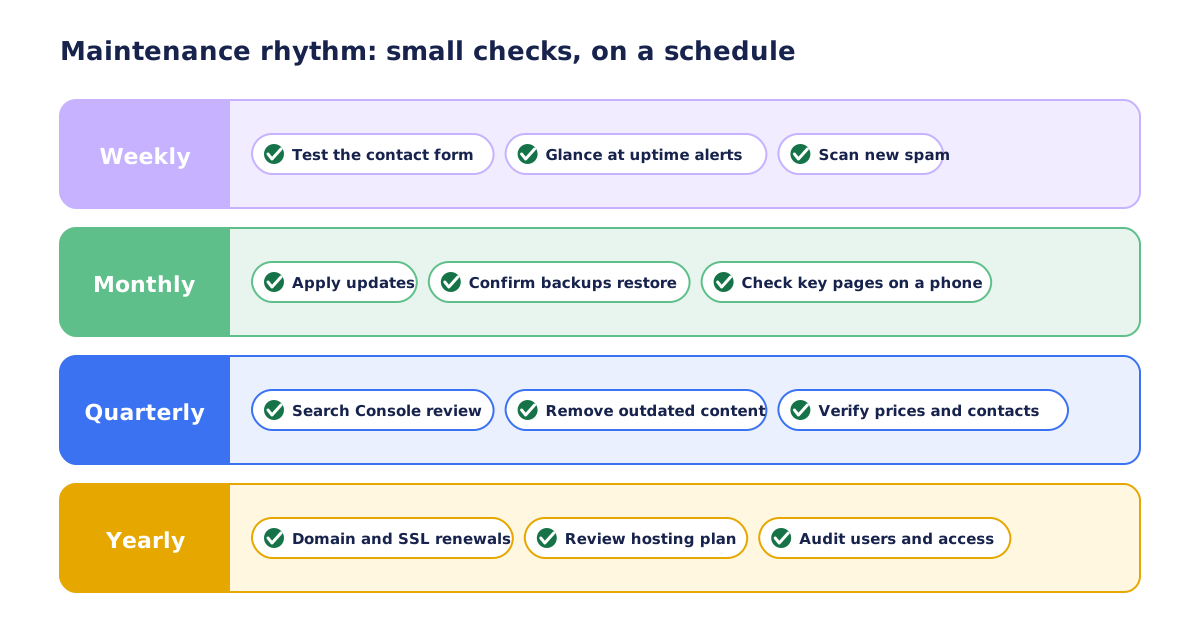
Not all tasks need the same frequency. Splitting them into four rhythms keeps the routine light: short checks often, deeper reviews rarely.
| Rhythm | Time needed | Focus | Examples |
|---|---|---|---|
| Weekly | 5 to 10 minutes | Is it up and are leads arriving? | Test the contact form, glance at uptime alerts, clear spam |
| Monthly | 45 to 90 minutes | Is it current, safe and backed up? | Updates, backups, security, speed, errors, key pages |
| Quarterly | 2 to 3 hours | Is it still doing its job? | SEO review, content audit, restore test, permissions review |
| Yearly | Half a day | Are the foundations sound? | Renewals, hosting review, policy and accessibility review |
The times are estimates for a small site. A store, a membership site or a site with many plugins takes longer.
Before you start: set up the basics once
Some groundwork makes every later check faster. Do it once and keep it updated.
Make an inventory of everything the site depends on
| Item | Details to record | Who owns it |
|---|---|---|
| Domain registrar | Provider, login email, expiry date, auto-renew status | Business |
| DNS provider | Where records are managed, key records | Business |
| Hosting | Provider, plan, server location, control panel link | Business |
| Website platform | CMS and version, theme, key plugins and licenses | Business or developer |
| Email for forms and business mail | Provider, sending method, SPF, DKIM and DMARC status | Business |
| Analytics and Search Console | Properties, who has access | Business |
| Third-party services | Booking, payments, newsletters, chat, CRM | Business |
| Backups | What is backed up, where, how often, how to restore | Developer or host |
| People with access | Names, roles, last login | Business |
Set up monitoring that does the watching for you
- An uptime monitor that checks the home page and the contact page every few minutes and alerts by email or text
- A reminder for domain and certificate expiry, even if auto-renew is on
- Search Console email alerts turned on
- Hosting notifications for resource limits and security events
Make a staging copy
A staging site is a private copy of the website where you can apply updates and test changes before they reach visitors. Many hosts offer one-click staging. If yours does not, ask your developer to set one up, or at least make a full backup before every update.
Keep a maintenance log
A short log of what was done, when and by whom makes problems easier to diagnose and lets you hand maintenance to someone else without losing context. A spreadsheet works.
| Date | Task | Result | Issues found | Done by |
|---|---|---|---|---|
| 2026-10-05 | Applied core and plugin updates | Success; staging tested first | None | Owner |
| 2026-10-05 | Restore test of last backup | Restored on staging | Media folder missing in backup; fixed | Developer |
| 2026-10-12 | Contact form test | Delivered in a minute | None | Owner |
Weekly checks (about 10 minutes)
These checks confirm that the site is available and that the most important business function, receiving inquiries, still works.
Submit the contact form
Fill in your own contact form with a test message and confirm that the email arrives in the right inbox, not in spam. Do the same for booking or quote forms. Forms can fail without any visible error when a mail setting changes, a plugin updates or a spam filter starts rejecting messages.
Check uptime and alerts
Look at the uptime monitor's report. Short outages happen, but repeated ones or slow responses deserve attention. Check hosting notices as well.
Clear spam
Remove spam comments, entries and fake sign-ups. If spam volume rises, strengthen the spam protection with a modern challenge, a honeypot field or rate limits.
Read recent inquiries
Skim the messages that came in. A sudden change in the number or type of inquiries can reveal a problem earlier than analytics.
| Task | Done when |
|---|---|
| Submit the contact and quote forms | The test email arrived within a few minutes |
| Review uptime and hosting alerts | No unexplained outages |
| Clear spam | Spam queue empty |
| Skim new inquiries | Nothing unusual |
| Open the home page and one key page on a phone | Loads and works |
Monthly checklist (about an hour)
The monthly routine is the heart of maintenance. Work through it in order, and note anything you cannot fix yourself for your developer.
1. Make a fresh backup, then apply updates
Updates fix bugs and security holes, so skipping them is risky. They can also break things, so the workflow matters.
- Confirm that a recent full backup exists (files and database)
- Review what updates are available: core platform, themes, plugins and any libraries
- Read the change notes for major updates and for plugins that handle forms, payments or security
- Apply updates on the staging copy first when you have one
- Test the key paths: home page, a service page, the contact form, search, checkout if you sell
- Apply the updates to the live site, one group at a time
- Clear caches and test again
- Note what changed in the maintenance log
Update order is usually: platform core, then plugins, then themes. If an update breaks something, restore from the backup or roll back that update, then investigate.
| Type of update | Risk | Approach |
|---|---|---|
| Security patch for core or a plugin | Low to medium | Apply promptly after a backup |
| Minor version update | Low | Apply monthly with testing |
| Major version update | Medium to high | Test on staging; read notes; allow time |
| Plugin no longer maintained | High | Replace it; do not leave it in place |
| Theme with customizations | Medium | Use a child theme or documented changes; test visually |
2. Check that backups actually run
Look at the backup log and confirm the latest backup exists, is complete and is stored away from the web server. A backup on the same server that fails is lost with it. Once a quarter, perform a real restore on staging.
3. Review security
- Review the list of users and remove people who no longer need access
- Check that administrators use strong, unique passwords and two-factor authentication
- Look at the security plugin or firewall report for blocked attacks and unusual logins
- Run a malware scan if your platform or host provides one
- Confirm that HTTPS works on every page and that the certificate is valid
- Check that no sensitive files, such as backups or configuration, are publicly accessible
4. Test forms, email and integrations
Beyond the weekly test, check every form, such as quote requests, newsletter signups and booking, and any integration that sends data to a CRM or a calendar. Confirm that confirmation messages reach the sender and that notifications reach you.
5. Check key pages on a phone and in two browsers
Open the home page, main services, contact page and, if you sell, the checkout on a real phone. Look for layout problems, broken buttons and tiny text. Repeat on a second browser. Updates and content changes can break layouts in ways that automated tests miss.
6. Measure speed
Run PageSpeed Insights on the home page and one important inner page. Compare with last month and with your baseline. A gradual decline usually points to new scripts, larger images or plugin bloat. See our guide on why small business websites load slowly for the usual causes.
7. Look for broken links and errors
Use Search Console's Pages report to see new errors, and a link checker to find broken internal and external links. Fix broken links on important pages, and set redirects for pages that moved.
8. Review analytics and conversions
Check that analytics still records traffic and that conversion events, such as form submissions and calls, still fire. A sudden zero is often a tracking break. Compare leads with last month and last year.
9. Update content that changes
Hours, holiday schedules, prices, staff, offers, locations and service lists should match reality. Check the pages where these details appear and your profile listings as well.
10. Review plugins and tools
List the plugins and third-party scripts in use. Remove what nobody uses, replace what is abandoned and check that licenses and subscriptions are active.
11. Check email authentication
If your site sends email, for example form notifications, confirm that SPF, DKIM and DMARC are set up for the sending domain. This improves deliverability and reduces the chance that messages land in spam.
12. Write the monthly note
Summarize what you did, what you found and what needs attention. It takes two minutes and saves hours later.
| # | Task | Time | Done when |
|---|---|---|---|
| 1 | Backup, then updates | 15 to 30 min | Everything updated, tested, logged |
| 2 | Check backups | 5 min | Latest backup exists and is stored off-server |
| 3 | Security review | 10 min | No unknown users, 2FA on, scan clean |
| 4 | Forms and integrations | 5 min | All deliver and confirm |
| 5 | Key pages on phone and two browsers | 10 min | No layout or function problems |
| 6 | Speed test | 5 min | Not worse than baseline |
| 7 | Errors and broken links | 10 min | New errors reviewed and fixed |
| 8 | Analytics and conversions | 5 min | Tracking works |
| 9 | Content accuracy | 10 min | Hours, prices and contacts correct |
| 10 | Plugins and tools | 5 min | Unused removed |
| 11 | Email authentication | 5 min | SPF, DKIM and DMARC pass |
| 12 | Monthly note | 2 min | Logged |
Quarterly checks (two to three hours)
Every three months, step back from the routine and review whether the site is still doing its job.
Restore drill
Restore the latest backup to a staging site and confirm that pages, images, forms and the admin area work. This is the only way to know that your backups are usable. Fix any gaps you find, such as missing media or an unreadable database dump.
SEO review
- Review Search Console: indexing, performance trends, manual actions and security issues
- Check the sitemap for errors and make sure it only lists live, indexable pages
- Review redirects and 404 errors for pages that still receive visits
- Look at queries that bring impressions without clicks and consider improving the titles and descriptions of those pages
- Check Core Web Vitals in the field data report
- Review internal links to your most important pages
Content review
List your main pages and check each for accuracy, clarity and a clear next step. Retire or update outdated articles. Add new questions from customers to the FAQ. If you publish regularly, review which articles bring visitors and which bring inquiries.
Permissions and accounts
Review who has access to the site, hosting, domain, analytics and other accounts. Remove former employees and contractors. Confirm that recovery emails and phone numbers are current and that more than one trusted person can regain access.
Conversion review
Look at the path from landing page to inquiry. Where do visitors leave? Are forms too long? Is the phone number visible on mobile? One small improvement per quarter adds up.
| Area | Check | Outcome |
|---|---|---|
| Backups | Full restore on staging | Documented success or a fix list |
| SEO | Search Console and sitemap review | Issues fixed or scheduled |
| Content | Review key pages and articles | Updates scheduled |
| Security | Users, roles, passwords, two-factor | Clean access list |
| Speed | Field and lab review | Plan for regressions |
| Conversions | Funnel and form review | One improvement chosen |
| Integrations | Check APIs, keys and subscriptions | Nothing expiring unnoticed |
Yearly checks
Some tasks only come around once a year, which is exactly why they are forgotten. Put them in the calendar with several reminders.
| Task | Why | Notes |
|---|---|---|
| Renew the domain and confirm auto-renew and contact email | An expired domain takes the site and email offline | Set reminders 60 and 30 days before expiry |
| Check SSL certificate renewal | Expired certificates cause browser warnings | Certificate lifetimes are getting shorter, so use automatic renewal and monitoring |
| Review the hosting plan | Traffic and needs change | Check resource limits, server location and support quality |
| Check platform and language versions | Unsupported versions stop receiving security fixes | Plan upgrades before end of support |
| Review privacy, cookie and terms pages | Laws, tools and practices change | Have them reviewed by a professional if needed |
| Accessibility review | Standards and content evolve | Test keyboard navigation, contrast and forms |
| Review subscriptions and licenses | Avoid surprise expirations and unused spend | Cancel what you do not use |
| Review the design and structure | A site can look dated or no longer fit the business | Decide whether a refresh is needed |
| Update the disaster recovery notes | People and tools change | Who to call, where backups live, how to restore |
Security in more depth
Most compromised small sites are not targeted individually. Automated tools scan the internet for known weaknesses and attack what they find. Basic hygiene stops most of this.
The basics that stop most attacks
- Keep the platform, themes and plugins updated
- Remove software you do not use, because it can still be exploited
- Use unique passwords stored in a password manager
- Turn on two-factor authentication for administrators and for the hosting and domain accounts
- Give each person the lowest level of access they need
- Limit login attempts and protect the login page
- Use HTTPS everywhere
- Back up regularly and keep copies off the server
- Choose hosting that provides isolation and security monitoring
If the site is hacked
- Stay calm and do not delete everything. Take screenshots and note symptoms.
- Contact your host and developer. Many hosts can isolate the site and provide logs.
- Change passwords for the site, hosting, database and email, from a clean device.
- Restore from a clean backup made before the compromise, if available, or clean the site with a professional.
- Update everything and remove the vulnerability that let the attacker in.
- Check Search Console for security warnings and request a review if flagged.
- Review user accounts and remove any you do not recognize.
- Write down what happened and add a check to prevent a repeat.
| Sign | Possible meaning | Action |
|---|---|---|
| Unknown admin users | Account takeover | Remove them, change passwords, investigate |
| Strange pages or links in search results | Injected spam | Scan, clean, restore, update |
| Site redirects to unknown pages | Malicious code | Isolate and clean immediately |
| Browser or search security warning | Detected compromise or deceptive content | Fix and request review |
| Sudden slowdown or high server use | Malware or attack traffic | Check logs; contact host |
| Unexpected emails sent from your domain | Compromised form or mail settings | Review mail configuration and passwords |
Backups in more depth
A backup strategy answers four questions: what is saved, how often, where it is stored and how you know it works.
| Question | Recommendation |
|---|---|
| What to back up | Site files, the database, uploads or media, and configuration |
| How often | Daily for sites that change often, weekly for rarely changing sites, plus before every update |
| Where to store | Away from the web server, ideally in a different provider or region |
| How many to keep | Several generations, for example daily for a week, weekly for a month and monthly for a year |
| How to protect | Encrypt sensitive backups and restrict access |
| How to verify | Restore test at least quarterly |
A widely used rule is the 3-2-1 approach: keep three copies of your data, on two different types of storage, with one copy off-site. For a small website that can mean the live site, a backup at the host and a copy in separate cloud storage.
How to run a restore test
- Create a clean staging environment
- Restore the latest backup into it
- Open the site and check pages, images, menus and forms
- Log in to the admin area and open a few records
- Note how long the restore took and what was missing
- Document the steps so someone else can repeat them under pressure
Email deliverability for forms and notifications
Website forms that send email to you often fail because the message looks suspicious to mail providers. Three technical records tell receiving servers that your messages are legitimate.
| Record | What it does | How to check |
|---|---|---|
| SPF | Lists the servers allowed to send mail for your domain | Use an SPF lookup tool and compare with your senders |
| DKIM | Adds a cryptographic signature to messages | Send a test email and inspect the headers |
| DMARC | Tells receivers what to do with messages that fail checks and sends reports | Check the DNS record and review reports |
- Send form notifications through a reliable mail service or SMTP account rather than the server's default mail function
- Use a sender address on your own domain and set the visitor's address as reply-to
- Test with several mailbox providers, including a free webmail address
- Keep a backup of submissions in the website database or a CRM, so an email failure does not lose leads
SEO maintenance
Search visibility needs steady upkeep. Search engines change, competitors publish and your own site evolves.
| Frequency | Task |
|---|---|
| Monthly | Check Search Console for new errors, manual actions and security issues; review top pages and queries |
| Monthly | Fix broken links and redirect moved pages |
| Quarterly | Refresh underperforming pages; improve titles and descriptions where impressions are high but clicks low |
| Quarterly | Review the sitemap and robots.txt |
| Yearly | Review site structure and keyword targeting against how customers search today |
If you are not sure what to look at first, a technical SEO audit can provide a prioritized list of issues based on how search engines see your site.
Content maintenance
Outdated information costs trust. Visitors who find wrong hours, discontinued services or old prices assume the business is not paying attention.
| Content | How often | Notes |
|---|---|---|
| Opening hours and holiday schedules | Before every holiday and quarterly | Also update external listings |
| Prices and offers | Monthly or when they change | Remove expired promotions |
| Team and contact details | When people change | Include photos and roles |
| Service descriptions | Quarterly | Reflect what you really offer now |
| Blog and guides | Twice a year | Update or retire outdated articles |
| Testimonials and case studies | When new ones arrive | Always with permission |
| Legal and policy pages | Yearly | Match actual practices |
| Copyright year in the footer | January | Use a script so it updates itself |
Accessibility and legal spot checks
Accessibility and privacy are not one-off tasks. New content, plugins and tools can introduce problems. A short monthly spot check and a yearly review keep them under control.
- Tab through the home page and the main form with the keyboard only, and confirm that focus is visible and the order makes sense
- Check that new images have meaningful alternative text
- Check color contrast on any new buttons or banners
- Make sure new videos have captions or transcripts where appropriate
- Confirm that cookie and consent tools match the scripts that actually run
- Review whether new forms collect personal information that the privacy policy does not mention
This is general guidance and not legal advice. Ask a qualified professional about your obligations.
Extra care for stores, bookings and other complex sites
Sites that take money, bookings or personal accounts need a longer routine because a failure costs more and the data is more sensitive.
| Site type | Extra checks | Why |
|---|---|---|
| Online store | Complete a test order, check payment and shipping settings, review tax and stock rules, confirm order emails | A broken checkout loses sales immediately |
| Booking or appointments | Make a test booking, check time zones, calendar sync and reminder emails | Double bookings and missed reminders damage trust |
| Membership or accounts | Test registration, login and password reset; review user roles; check privacy requests process | Account data is sensitive |
| Multilingual site | Check language switching, translated forms and hreflang or equivalent settings | Translations drift out of date |
| Site with many editors | Review roles, workflows and content approval | More people means more risk of mistakes |
| Site with integrations | Check API keys, webhooks and error logs; confirm data reaches the CRM or accounting tool | Silent integration failures lose leads and orders |
Payment and checkout safety
- Use a reputable payment provider that handles card data on its own secure pages
- Keep payment plugins updated and review their security notices
- Never store full card details on your own server
- Check refund and failed-payment flows, not only the successful path
- Keep a record of changes to checkout settings
Performance during busy periods
Before seasonal peaks such as holidays, sales or local events, run a speed test, check hosting limits and confirm that caching and backups are working. Peak traffic exposes weaknesses that quiet months hide.
A sample monthly maintenance report
A short report keeps everyone informed and creates a history you can refer to. The example below is fictional and only shows the format.
| Section | Example entry |
|---|---|
| Updates applied | WordPress core, 6 plugins and the theme updated on staging, tested, then applied to the live site |
| Backups | Daily backups confirmed; weekly copy stored off-server; restore test scheduled for next month |
| Security | No unknown users; two-factor on all administrators; one blocked brute-force wave, no impact |
| Forms | Contact and quote forms delivered in under two minutes; spam filter caught several attempts |
| Performance | Mobile speed test steady compared with last month; one new banner image compressed |
| SEO | Two new 404 errors fixed with redirects; no manual actions or security issues |
| Content | Holiday hours added; one outdated offer removed |
| Needs a decision | A plugin is no longer maintained: replace it now or at the next redesign |
| Upcoming | Domain renewal in 45 days; certificate renews automatically |
Reports like this make maintenance visible. They also make it easy to onboard a new person and to decide where to invest next.
What maintenance costs and how to budget time
Maintenance has two kinds of cost: recurring fees for services and the time of whoever does the work. Both are small compared with the cost of recovering from a failure.
| Item | Frequency | Notes |
|---|---|---|
| Domain registration | Yearly | Price varies by extension |
| Hosting | Monthly or yearly | Higher plans for stores and busy sites |
| Premium plugin or theme licenses | Yearly | Needed for updates and support |
| Backup storage | Monthly | Often included in managed hosting |
| Uptime monitoring and security services | Monthly or yearly | Free tiers exist for basic needs |
| Maintenance time (yours or a developer's) | Monthly | An hour or two for a small site |
| Content updates | As needed | Plan for a few pages per quarter |
A practical approach is to set an annual maintenance budget when the site launches, and to review it when the site changes substantially. Compare it with the value of the leads the site produces. A site that brings in even a handful of jobs a month justifies regular care.
Tools that make the routine easier
| Tool type | Use | Examples of what to look for |
|---|---|---|
| Uptime monitor | Alerts when the site is down or slow | Checks every few minutes, email or text alerts |
| Password manager | Unique passwords and secure sharing | Team sharing, two-factor support |
| Backup service | Automated off-site copies | Restore options and retention control |
| Security scanner or firewall | Detects malware and blocks attacks | Reports in plain language |
| Link and error checker | Finds broken links | Scheduled crawls |
| Speed testing tools | Tracks performance | Lab and field data |
| Project tracker or spreadsheet | Maintenance log and reminders | Simple and shared |
Doing it yourself or hiring help
Many owners can handle the weekly and parts of the monthly routine. Others prefer to delegate everything. The right split depends on your comfort with the admin area and your time.
| Task | Usually fine for the owner | Better for a developer |
|---|---|---|
| Test forms and read inquiries | Yes | No |
| Update content and hours | Yes | No |
| Apply updates | If a staging site and backups exist and you are comfortable | Yes, especially for major updates |
| Restore tests | Rarely | Yes |
| Security scans and cleanup | Run scans | Cleanup and hardening |
| Speed fixes beyond image compression | No | Yes |
| Email authentication records | No | Yes |
| SEO fixes in templates and redirects | No | Yes |
What a maintenance plan should include
- A clear list of tasks done each month
- A defined time allowance for small changes
- A short report of what was done
- How and when to reach the person, and what counts as an emergency
- What is quoted separately, such as redesigns or new features
- Clear terms for starting and ending the arrangement
My website maintenance plan is built around that list: updates, checks, small content edits and fixes within an agreed monthly allowance, with a short note on what was done. Unused time does not carry over, larger work is quoted separately and terms are agreed in writing at the start. If you are not sure what your site needs, you can send a brief with its address.
The printable monthly checklist
Copy this into a document or your project tool and tick it off each month.
Before you begin
- Open the maintenance log and read last month's note
- Confirm a recent full backup exists
Updates and security
- Apply platform, plugin and theme updates (staging first when possible)
- Test the main pages and forms after updating
- Review user accounts and remove anyone who no longer needs access
- Confirm two-factor authentication on administrator accounts
- Check security and malware reports
- Confirm HTTPS and the certificate
Function and performance
- Submit every form and confirm delivery
- Open key pages on a phone and in two browsers
- Run PageSpeed Insights on two key pages and record the results
- Review broken links and Search Console errors
- Check that analytics and conversion events work
Content and tools
- Check hours, prices, contacts and offers
- Review plugins and third-party scripts; remove unused ones
- Check email authentication for the sending domain
- Review upcoming renewals for domain, hosting and subscriptions
Wrap up
- Write the monthly note in the maintenance log
- Schedule anything you could not fix
- Set the reminder for next month
Common maintenance mistakes
- Skipping updates for months because "everything works"
- Updating on the live site without a backup
- Never testing a restore
- Keeping unused plugins and old themes installed
- Sharing one administrator password between several people
- Leaving former employees and contractors with access
- Relying on form emails with no copy of submissions stored anywhere
- Forgetting domain and certificate renewals
- Letting the content age until it contradicts reality
- Making changes with no record of what was done
- Assuming the host handles everything
- Trying to fix a hacked site by only deleting visible spam
Frequently asked questions
How often should a website be maintained?
Light checks weekly, a full routine monthly, a deeper review quarterly and a foundations check yearly. Sites that change often, such as stores, need closer attention.
How long does monthly maintenance take?
For a small site with a simple platform, roughly an hour a month once the routine is set up. Larger or more complex sites take longer.
Do I need maintenance if my site is built on a hosted website builder?
Less technical maintenance is needed because the provider handles updates, but you still need to check forms, content, links, domain renewals, analytics and speed.
What happens if I never update my site?
Known vulnerabilities stay open, plugins can stop working with newer versions and the site becomes more likely to be compromised or to break. Updates are the single most important routine task.
How do I know my backups work?
Only by restoring one. Restore the latest backup to a staging site once a quarter and check that pages, images and forms work.
Is hosting maintenance the same as website maintenance?
No. Hosting providers maintain servers, but they usually do not update your plugins, test your forms, review your content or fix your pages. Check what your plan includes.
Can I skip maintenance and just rebuild the site later?
That is often more expensive. Regular care is cheaper than emergency repairs and protects the investment in the site, its search visibility and your customers' trust.
What should a maintenance report contain?
The tasks completed, updates applied, issues found and fixed, items that need a decision and any upcoming renewals or risks.

Website Maintenance
Monthly updates, checks and small content changes within an agreed time allowance.
Independent web developer and SEO specialist since 2010. Based in Kyiv, Ukraine, working remotely with US businesses.
More about me